

Ancestry.com Help Menu
Login Help
Click the Login link to Ancestry.com from the Toman or Marchisa Ancestry pages or alternatively, access www.ancestry.com from your browser.

- You should see this input box on the screen. Follow these steps:
- Enter marchisatoman in the Username box
- Hit the Tab key on the keyboard or position the Mouse cursor into the Password box
- Enter Newzealand5633!! in the Password box
- Click the “Sign In” button or hit the Enter key on your keyboard
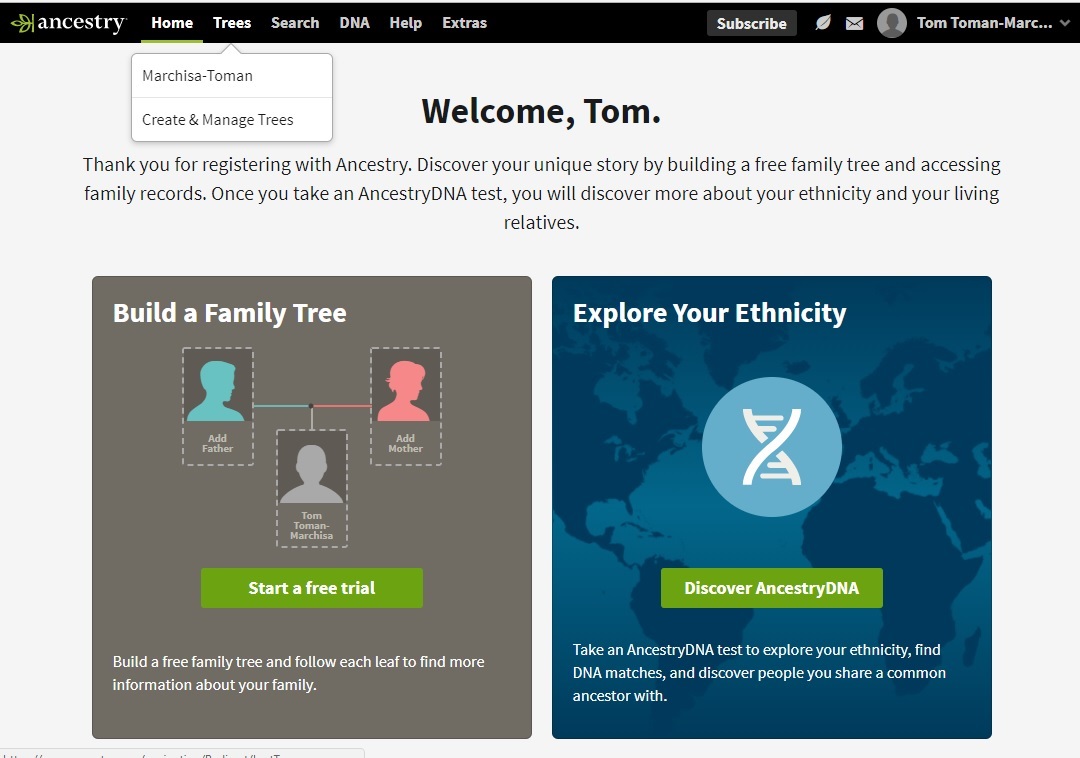
- After clicking the “Sign In” button, you should see this screen. Follow these steps:
- Click “Trees” on the upper Navigation bar
- Click “Marchisa-Toman” from the drop down list
Overview
Ancestry.com has 2 primary ways to view ancestry data and it’s easy to switch back and forth:
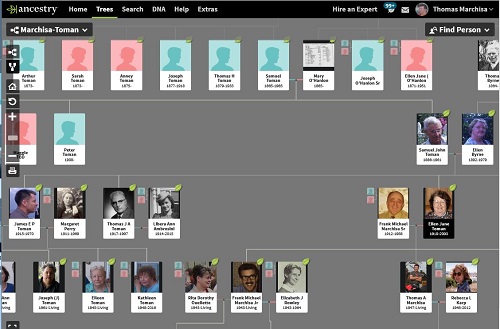
Tree View
- Visual representation of family connections
- View many people on 1 screen
- Easy to find cousins
- Uses “Drag and Drop” to move screen Right and Left and Up and Down
- Tree nodes, (people), link to people profiles
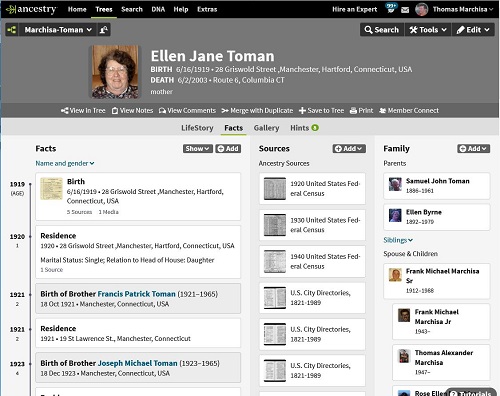
Profile View
- View detail of each person in tree
- View document attachments such as Birth Certificates
- Documents that I have scanned are viewable
- Documents such as Census Records are only viewable to paid subscribers of Ancestry.com
- View a timeline, “LifeStory”, of a person’s life
- View a person’s photo gallery
Get Started Help
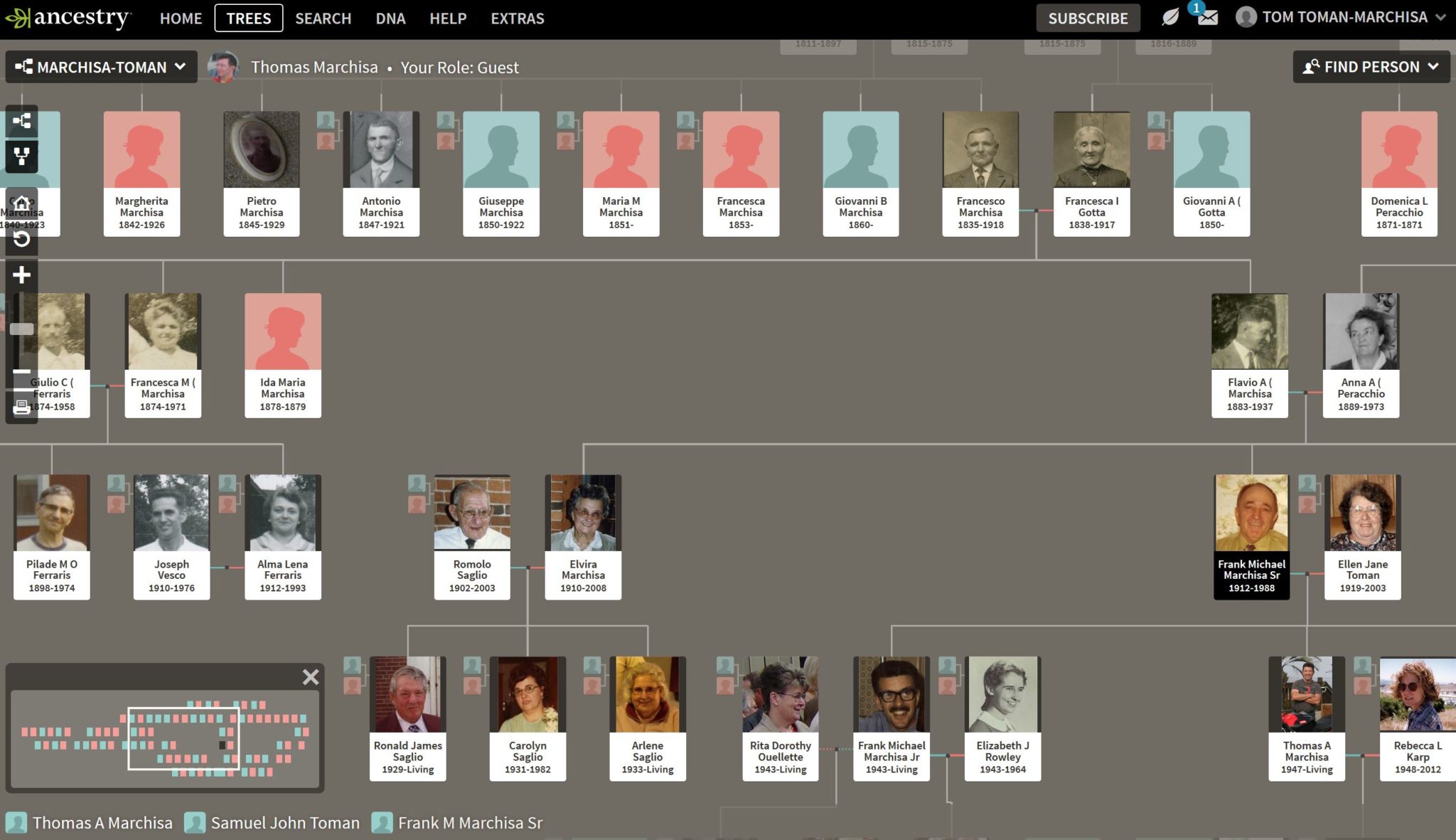
You MUST login to Ancestry.com from this website to get to the Marchisa-Toman Family Tree directly. When you successfully login to Ancestry.com from this website, you should see a screen similar to this one
. .
.
Because everyone accessing this tree shares the same read-only user account, the first screen you see will likely be the last screen that someone else viewed. To get to a starting point that makes sense to you, you need to enter the name of the person in the tree that you want to see first.
Here are the steps to do that:
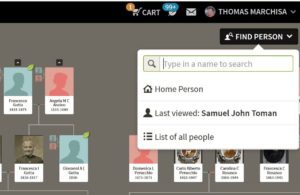
Click on the Find Person Box in the upper right corner of the screen.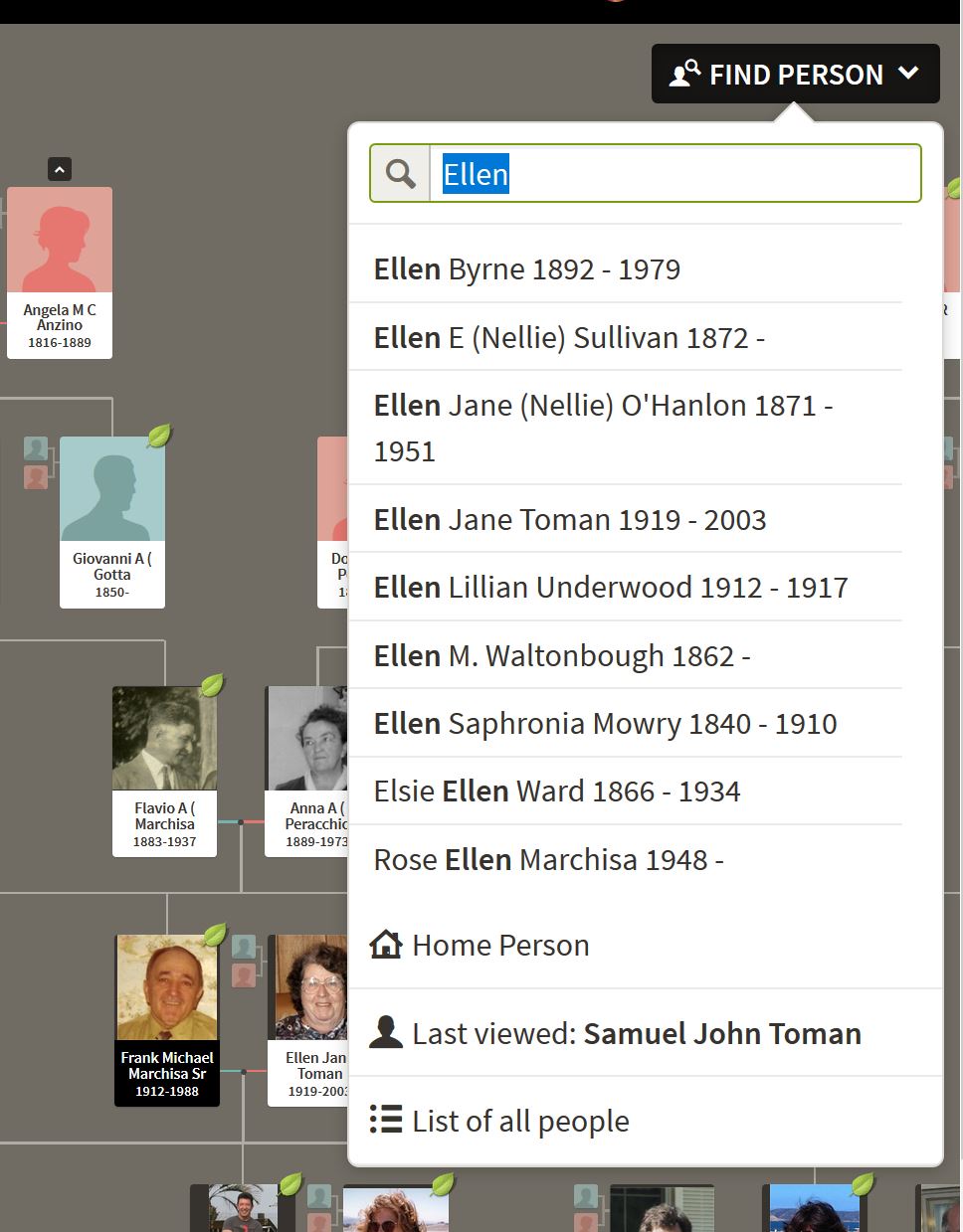
Start entering the name of the person you want to see first. As you do, the drop down box of names will start populating itself with potential matches.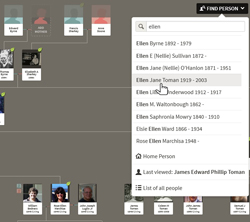
Click on the person you want to see.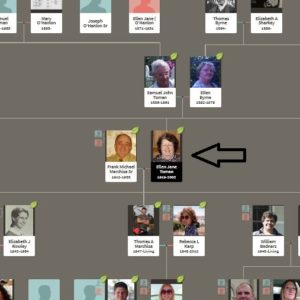
The screen will then display the tree view with your person in a black background color.- At this point you are ready to start navigating the tree
Navigation Help
- Change to Tree View when you are in Profile View
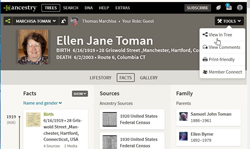
- Click on “Tools” button in upper right corner
- Click on “View in Tree” from dropdown.
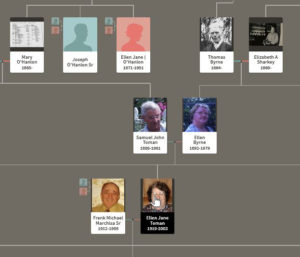
- Change to Profile View when you are in Tree View
-
- Click on Tree Node, (person), that you want to see Profile for
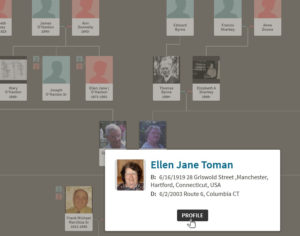
- Click on “Profile” button
-
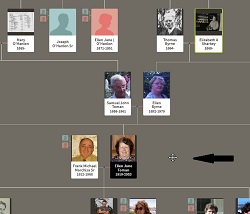
- Move Tree View Left and Right, Up and Down
-
- Position cursor in gray area of Tree View
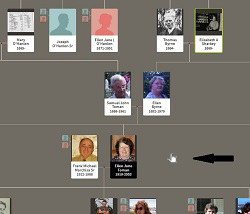
- Hold Left Mouse Clicker down. (Cursor symbol changes from cross to hand)
- Move Mouse in the direction you want to move Tree View while holding the Left Mouse Clicker down
-
- View attached documents in Profile View
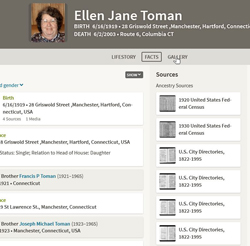
-
- Click on Gallery tab
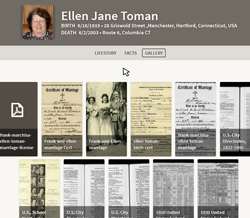
-
- Position Mouse on white space, (not on top of document images)
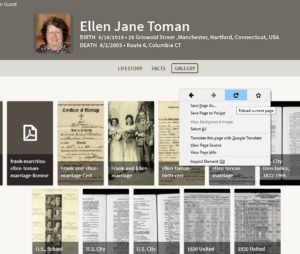
-
- Perform a Right Mouse Click to expose drop down menu and click on Refresh Symbol, (usually a small clockwise circular arrow)
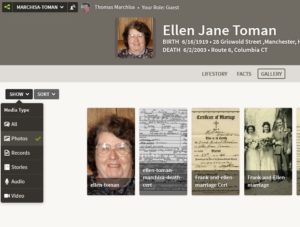
- Click on the “Show” button and select “Photos”
- Click on Document of interest
-